Twilio is an affordable and reliable international SMS text messaging provider that allows for seamless integrated SMS text messaging from within AYS.
Configuring Twilio SMS text messaging is a two-step process:
- Set up and configure an account with Twilio, including obtaining a sending phone number
- Enter your Twilio settings within AYS
Setting up and configuring an account with Twilio
Step 1: Go to Twilio’s web site and log in to Twilio Console or create an account. It may ask your intended use of the service, you can choose “With code” as the first option.
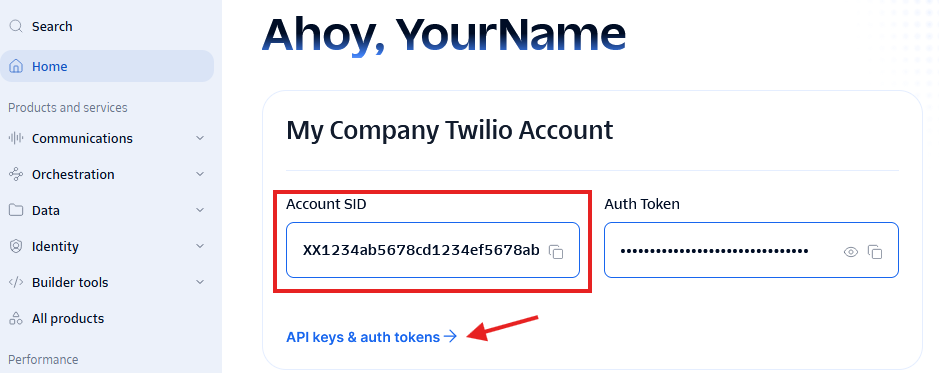
Step 2: Once you have set up an account, you will see an account SID and token on the welcome screen. You will require your Account SID for use in AYS. Copy it to a document on your computer.
Once you have recorded it, click “API keys & auth tokens” below.
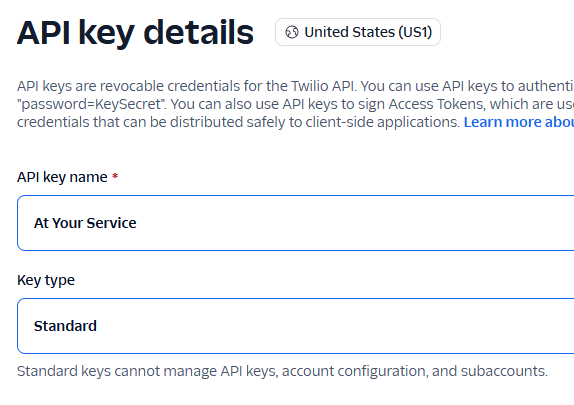
Step 3: Click on “Create API key”. Enter an API key name to identify the source of the SMS requests (e.g. “At Your Service”) and choose “Standard” as the key type, and click “Next”
Step 4: On this next screen, you can copy the API key SID and Client secret. Copy these and store them in a secure location
The site will remind you that the Client secret will only be shown once, if you lose it or forget to copy it at this point, you will need to delete the API key and start again.
Once copied, check the box to acknowledge that you copied and saved the secret and click “Finish”.
Step 5: Obtain a sending phone number
In many locations such as United States and Canada, a sending number is required to send SMS messages through a service like Twilio. This is due to legislation intended to reduce and prevent unsolicited SMS spam messages.
On the left menu bar, click Communications – Numbers & senders – Overview.
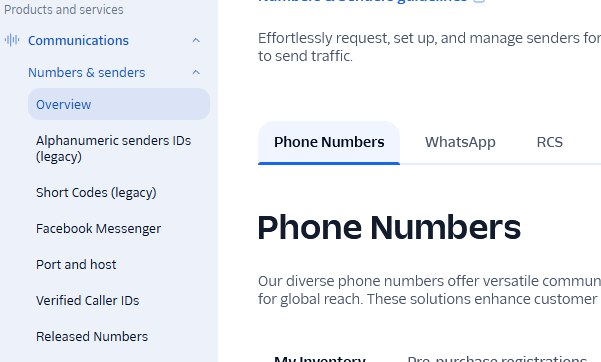
Click “Set up a new phone number”
Twilio will require some business information to verify your business is legitimate before they will assign you a number. This may require you to provide business contact information and registration ID numbers. This process is often automatic but may require Twilio to review the information manually. This could take a day or two before you can complete this part of the process.
The next screen will allow you to search for a phone number, enter the destination country and choose at least SMS as the capability.
Although it is not required, you may wish to change your search criteria to “Locality” and enter your city if you want to have a number and area code that is within the area of your business.
Choose a number from the list and click Next. You can then complete the purchase of the number.
Enter the details in At Your Service
Step 1: In At Your Service, select Setup – Communication Options – SMS Text Messaging, and choose Twilio as the SMS text messaging method.
Step 2: Fill the account details from the Twilio account that you had saved, including your Account SID, the API SID and the Client secret, and enter the number obtained from Twilio as the “Twilio from number”. Enter a personal cell phone number so that you can receive a test message and click “Test”.
0 people found this article useful
0 people found this article useful